Coins and values
The coin scanner
Photograph a coin and pick it from the scanner’s suggestions. Open to early testers while it is being tested.
Published 11 October 2026
What the scanner does
Photograph a coin and the scanner suggests which coin in the catalogue it is. You pick the right one, then add it to your collection in one tap.
- 1
Photograph one side
The coin is cut out and checked.
- 2
Photograph the other side
Optional, but two sides match far better.
- 3
Identify
Up to ten likely coins, best first.
- 4
Pick yours
Add it to your collection, or scan the next coin.
Who can use it
While the scanner is being tested, only early testers can use it. Places are limited.
- 1Open the scanner and sign in.
- 2Press Join the early testers.
- 3If there is room, the scanner opens straight away. If not, you see your place in the queue.
- 4People in the queue are let in in the order they joined. You get one email, You can use the coin scanner now, when you are in.
- + Add in the header → Scan a coin.
- Your own collection → Scan a coin (on a phone, the Scan button).
- Browse → the camera beside the search box.
Once you are a tester, these open the scanner too. Until then, none of them appear.
Taking a good photo
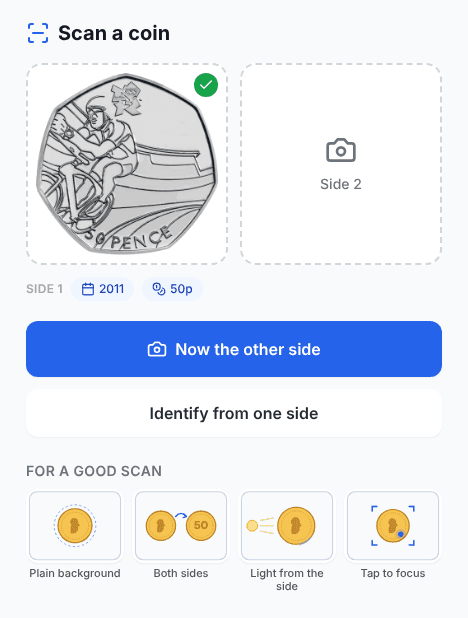
The button opens your phone’s camera. The coin is found wherever it is in the photo, so there is nothing to line up.
- Plain background — the coin about a third of the photo.
- Both sides — two photos give the best match.
- Light from the side — it shows the date, without glare.
- Tap to focus, then hold still.
A warning — Blurred, Too far away, Edge cut off — means retake it for a better match. No coin found cannot be identified at all. Photos cost nothing: only Identify counts as a scan.
Reading the results
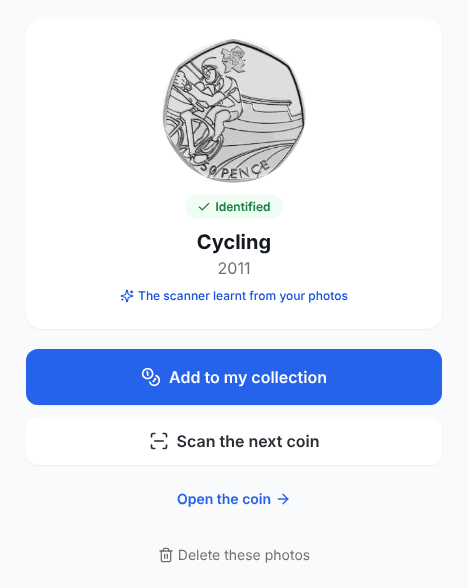
The best match comes first, outlined. Five show at first; the rest are one tap away.
- Date read — the year read on your coin is already chosen.
- Closest to the date read — that exact year was not found for this design. Check it.
- Which year? — the design was struck in several years. Choose yours, then This one.
- Year on the coin — type the date and press Filter to see only coins minted that year.
When the match is wrong
If none of the suggestions is your coin:
- Year on the coin — type the date you can see. It often finds the coin when the scanner could not read it.
- Not here? Search — under the list. Search by name, for example “florin George V”.
- Ask the community — posts a thread asking collectors to identify it. It uses the cut-outs, never your full photos. The cut-outs become public and collectors are told.
- I don’t know — ends the scan as not identified.
- Start again — take new photos.
When you pick a coin the scanner did not put first, it learns from your photos (The scanner learnt from your photos). That helps your own scans straight away. It is not used for anyone else’s until it has been reviewed.
How many scans you get
A scan is one press of Identify, from one side or two. Retakes, photos with no coin, filtering, searching and finishing a scan later do not count.
- Free: 25 scans a month.
- [Florin Plus](/membership): 500 scans a month.
- Everyone: at most 60 scans a day.
- The month starts again at midnight UK time on the 1st.
- The day starts again at midnight GMT — 1am in the UK during British Summer Time.
From five left, the page shows how many scans remain. At the month’s limit, Florin Plus opens on the page; join and the same photos are identified. Deleting a scan does not give it back.
Your scans and your photos
Your newest four scans sit under the photo buttons on the scanner. The full list is Your scans.
- Each scan shows its cut-outs, the coin you chose or Not identified, and when.
- Not finished — you left before picking a coin. Continue reopens its suggestions.
- Photos not scanned — photos you took but never identified.
- The bin asks once: Delete these photos? Delete removes the scan, its photos and cut-outs, and anything the scanner learnt from them.
Your photos are private: kept out of public view, with the location and other details your phone saves removed before they are stored. They are kept until you delete them, at a smaller size once the coin is identified. A retake deletes the photo it replaces.